WordPressでカスタムウィジェットを複数追加してショートコード表示する方法
 login_user
目次
この記事では、WordPressでカスタムウィジェットを複数追加し、ショートコードで表示する方法を解説します。好きな場所に柔軟にパーツを配置したい時や、再利用しやすい形で管理したい時に役立ちます。実際のコード例を使いながら、初心者にもわかりやすく説明します。
1 実装のポイント
- functions.phpで汎用カスタムウィジェットショートコードを作成
- ウィジェットIDを指定して複数のウィジェットを表示可能
2 functions.php にコードを追加
// ------------------------------
// 複数ウィジェットエリアを登録
// ------------------------------
function custom_widget_areas_init() {

    // トップ用ウィジェット
    register_sidebar(array(
        'name'          => 'トップ用ウィジェット',
        'id'            => 'top_widget',
        'before_widget' => '<div class="custom-widget-area">',
        'after_widget'  => '</div>',
        'before_title'  => '<h3 class="widget-title">',
        'after_title'   => '</h3>',
    ));

    // サイドバー用ウィジェット
    register_sidebar(array(
        'name'          => 'サイドバー用ウィジェット',
        'id'            => 'sidebar_widget',
        'before_widget' => '<div class="custom-widget-area">',
        'after_widget'  => '</div>',
        'before_title'  => '<h3 class="widget-title">',
        'after_title'   => '</h3>',
    ));

    // ボトム用ウィジェット
    register_sidebar(array(
        'name'          => 'ボトム用ウィジェット',
        'id'            => 'bottom_widget',
        'before_widget' => '<div class="custom-widget-area">',
        'after_widget'  => '</div>',
        'before_title'  => '<h3 class="widget-title">',
        'after_title'   => '</h3>',
    ));
}
add_action('widgets_init', 'custom_widget_areas_init');


// ------------------------------
// 汎用ショートコードでウィジェットを表示
// ------------------------------
function flexible_custom_widget_shortcode($atts) {
    $atts = shortcode_atts(array(
        'id' => '', // 呼び出すウィジェットID
    ), $atts);

    if (!$atts['id']) return ''; // ID がなければ空白

    ob_start();
    if (is_active_sidebar($atts['id'])) {
        dynamic_sidebar($atts['id']);
    }
    return ob_get_clean();
}
add_shortcode('custom_widget_flex', 'flexible_custom_widget_shortcode');
補足:
① 外観→ウィジェットで任意のウィジェットエリアを作成します(IDは自由に設定)。
② 記事や固定ページでショートコード [custom_widget_flex id="ウィジェットID"] を使用して表示します。
③ ウィジェットの中身はHTML・画像・テキスト・ショートコードなど自由に入力可能です。
① 外観→ウィジェットで任意のウィジェットエリアを作成します(IDは自由に設定)。
② 記事や固定ページでショートコード [custom_widget_flex id="ウィジェットID"] を使用して表示します。
③ ウィジェットの中身はHTML・画像・テキスト・ショートコードなど自由に入力可能です。
3 使い方の例
例えば、トップ用とサイドバー用にウィジェットを分けたい場合:
[custom_widget_flex id="top_widget"]
[custom_widget_flex id="sidebar_widget"]
[custom_widget_flex id="bottom_widget"]
ショートコードを固定ページや投稿ページに貼り付けると表示されます。
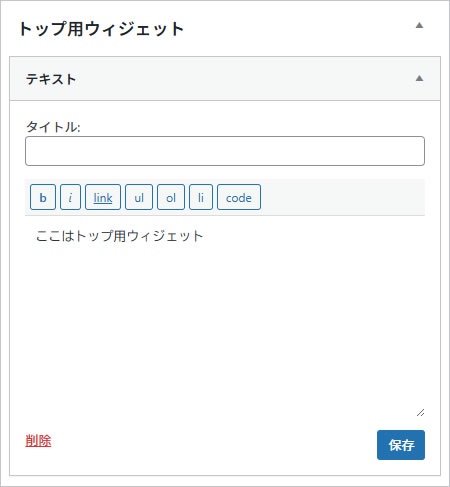
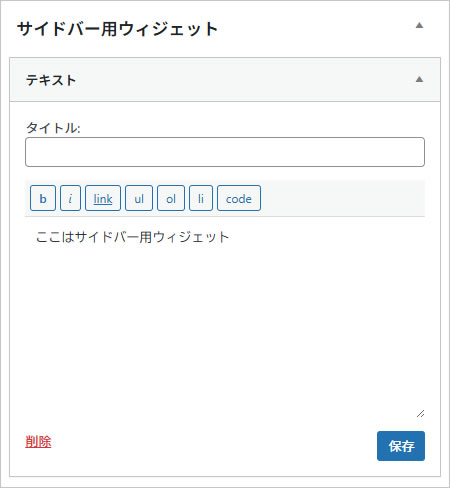
4 完成イメージ
4.1 トップ用ウィジェット
4.2 サイドバー用ウィジェット
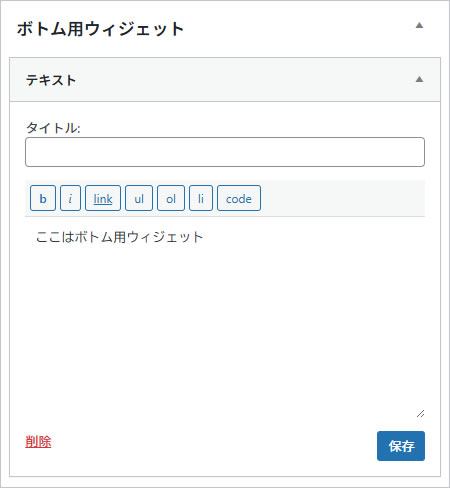
4.3 ボトム用ウィジェット
5 まとめ
- 汎用ショートコード [custom_widget_flex id="ウィジェットID"] で複数のカスタムウィジェットを表示可能
- ウィジェットエリアの中身はHTML・画像・テキスト・ショートコードなど自由に入力できる
この方法を使えば、複数のカスタムウィジェットを記事や固定ページに自由に配置できます。ショートコード1つで簡単に管理可能です。